User Guide
1. Initial Setup (Open Volume / First-Time Initialization)
Windows
• Connect the Pocket Drive to your computer
• Open Disk Management
• Select Initialize Disk → choose GPT
• Click New Simple Volume
• Format to exFAT
macOS
• Connect the Pocket Drive to your Mac device
• Open Disk Utility
• Select Pocket Drive → click Erase
• Format: exFAT
• Scheme: GUID Partition Map
Android
If the drive is not detected:
• Connect the Pocket Drive
• If a Set up / Format notification appears, select Format as portable storage
• If no option appears, initialize the drive first using Windows or macOS
iPhone / iPad
Direct initialization is not supported.
Please format the drive first using Windows or macOS with exFAT.
2. Connect the Device
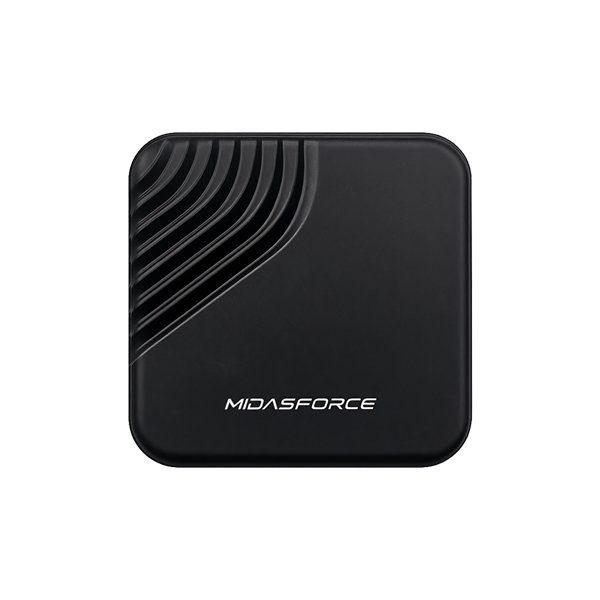
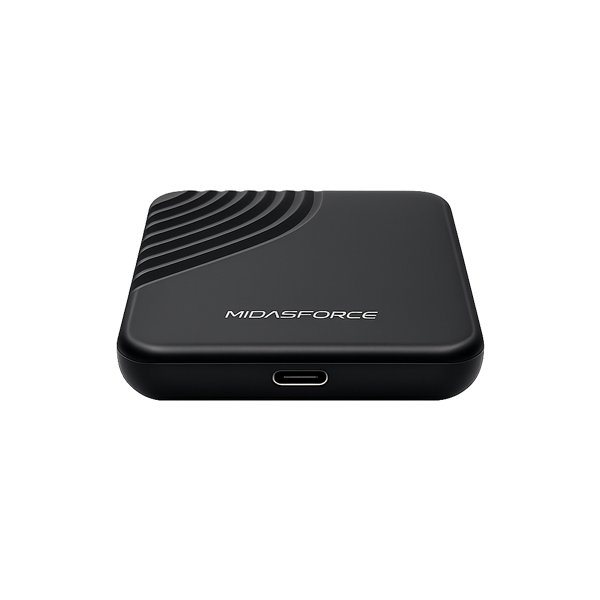
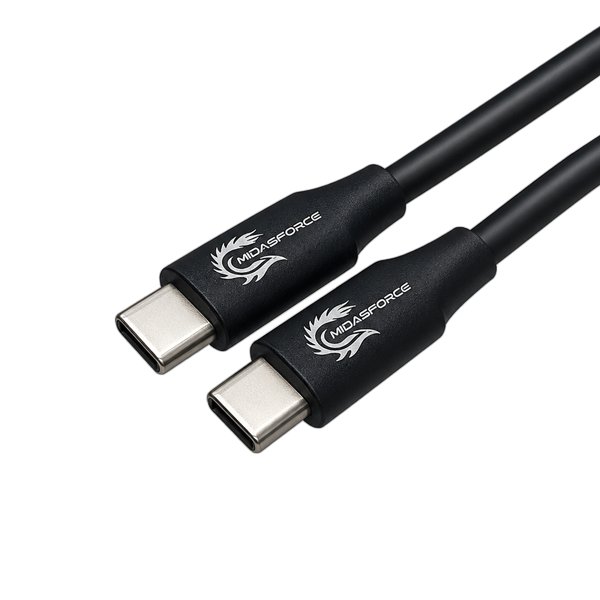
Use the included USB Type-C to Type-C cable. Connect one end to the Midasforce Pocket Drive and the other end to your device.
3. Using with Android
Compatible with Android smartphones and tablets equipped with a USB Type-C port and OTG support.
Android 10 or later is recommended.
Open the File Manager / Files app to access the SSD.
4. Using with iPhone / iPad
Compatible with USB Type-C devices.
Recommended for iPhone 15 / newer iPads with iOS / iPadOS 16 or later.
Open the Files app to access your data.
5. Using with Windows PC / Laptop
Compatible with Windows 10 and Windows 11.
Once connected, the SSD will automatically appear in File Explorer.
6. Using with macOS
Compatible with MacBook, iMac, Mac mini, and other Apple devices.
macOS 11 Big Sur or later is recommended.
The SSD will automatically appear in Finder.
7. Supported File Formats
Pocket Drive supports the following file system formats:
• exFAT → Recommended for cross-platform use (Windows, macOS, Android, iPhone/iPad)
• FAT32 → Broad compatibility, but limited to files up to 4GB
• NTFS → Optimized for Windows, limited access on macOS (read-only on some systems)
• APFS / HFS+ → Optimized for Apple devices (macOS / iPhone / iPad)
If you plan to use Pocket Drive across multiple devices, we recommend using exFAT.
8. How to Access / Open the Drive
Once connected, open the Pocket Drive using the following apps depending on your device:
• Windows: Open File Explorer → select the drive under "This PC"
• macOS: Open Finder → select the drive from the left sidebar
• Android: Open the File Manager / Files app
• iPhone / iPad: Open the Files app → select the external drive location
If the drive does not appear:
• Disconnect and reconnect the device
• Ensure the cable is properly connected
• Check whether the drive is formatted in a compatible file system
9. Safe Removal
Ensure all file transfers are complete before disconnecting the SSD.
Use the Eject / Safely Remove feature to protect your data.
10. Notes
Transfer speeds may vary depending on the host device and operating system.
Some smartphones require OTG support.
For cross-platform compatibility, we recommend using exFAT format.
Warranty Information
To view the Midasforce Pocket Drive warranty terms and conditions, please click the button below:
View Warranty Terms
By using this product, users are deemed to have understood and agreed to the applicable warranty service terms.